
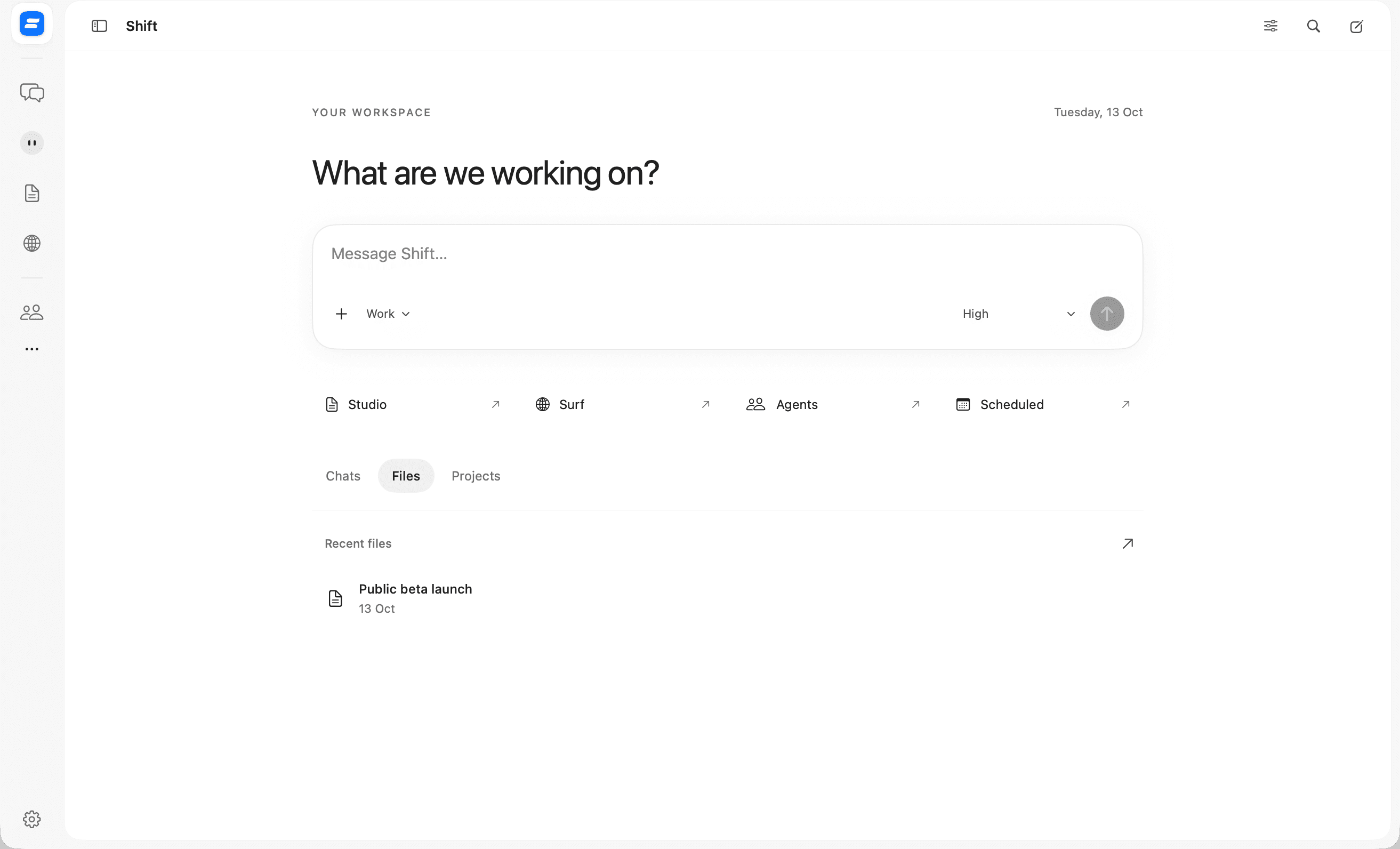
Shift brings conversations, browser context, editable work, and actions on your Mac into one workspace.
Today, we’re opening Shift Public Beta 1.0. You can ask about a page in Surf, work on a document in Studio, talk something through with Neo, or ask Shift for help in another app. Each has a place in the workspace, with conversations and projects to keep your work organised.
The work continues after the answer.
Most work involves more than writing a prompt. There is a page to read, a file to change, a decision to make, or an unfamiliar interface to navigate. Moving between those steps means carrying context from one tool to another.
Shift is built around that wider task. It brings AI closer to the material you’re working with and gives it ways to help you act. With your permission, it can observe your screen, identify controls, and interact with apps. You can also ask it to guide you while you stay in control.
For example, asking where to sign in can become a pointer to the relevant control on the current page. A request for a draft can become text you edit in Studio. The aim is to make the result part of your work, with a clear way to inspect it and continue.
A place for each part of the task.
Shift keeps the work organised.
Chats hold the context for individual tasks. Projects bring related conversations together. Agents carry instructions for recurring responsibilities, and scheduled tasks give work a time to run. You can return to the relevant conversation to see what happened and decide what comes next.
Surf keeps the source in view.
Surf is a browser inside Shift, with tabs, bookmarks, and assistance attached to the page. Ask for the main points of an article or help finding information on a site. Page conversations can use Surf’s tools to read and interact with their assigned tab, so the question and its source stay together.
Studio gives the answer somewhere to go.
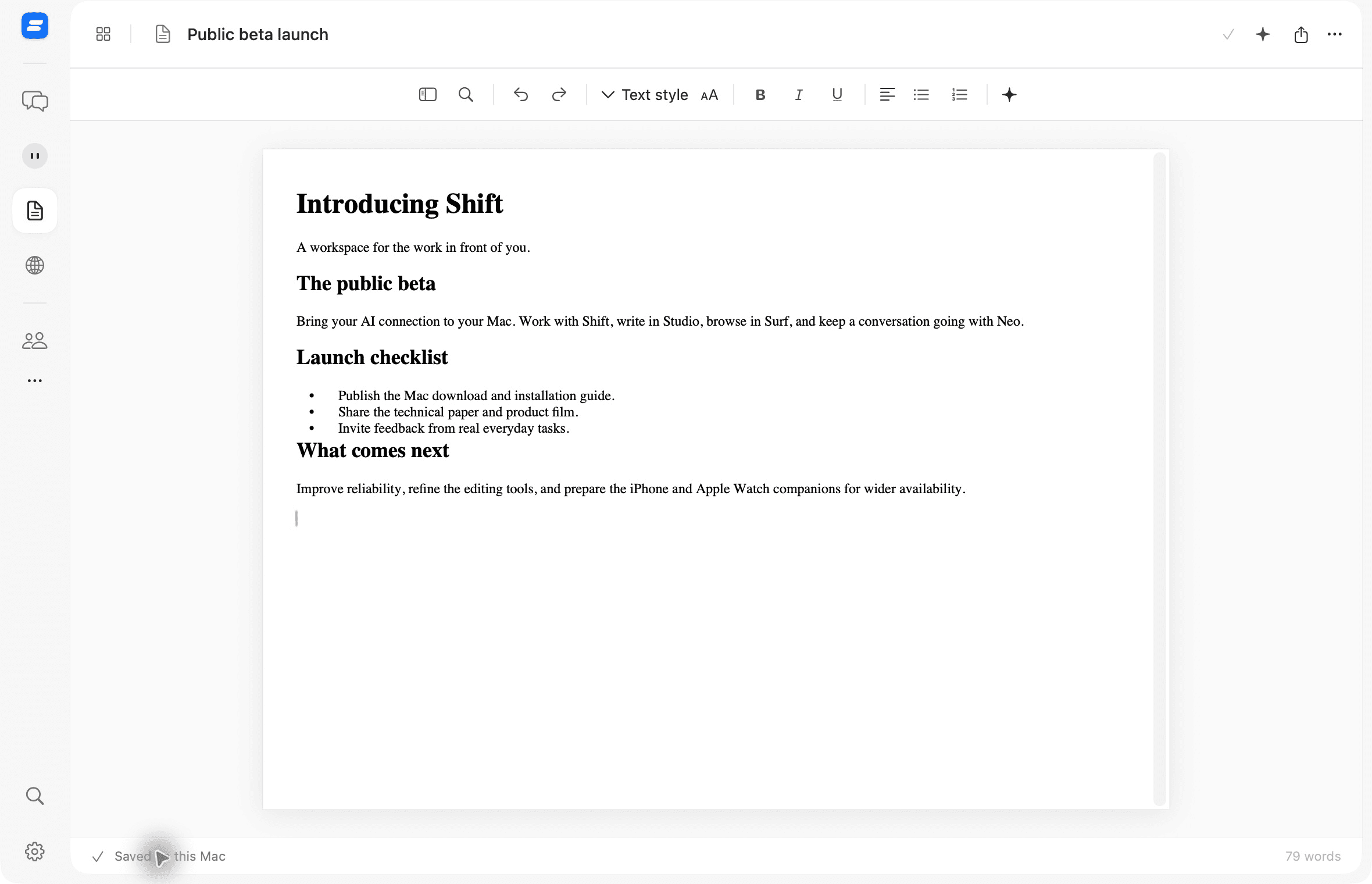
Studio is the workspace for documents, spreadsheets, and presentations. Write and format directly, or type /shift followed by a request inside a document. Ask for a first draft, then edit it in place. When revising selected text, you can review the proposed replacement before applying it.
Neo is the conversation you keep coming back to.
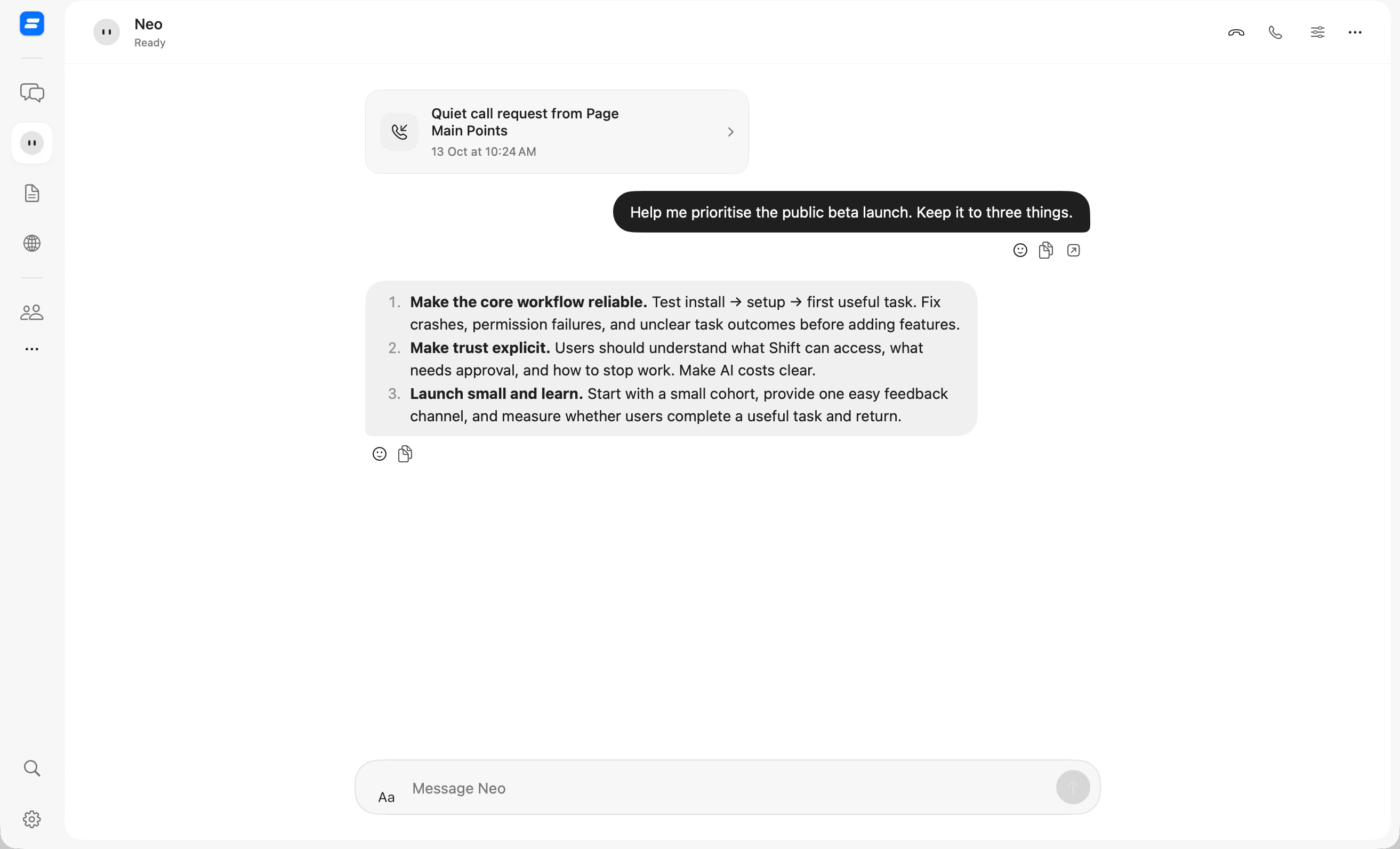
Neo is your personal assistant within Shift. Use the conversation to think through a decision, organise priorities, or work out a next step. Its appearance is yours to customise. The exchange below is a real response to a request to narrow the public beta launch down to three priorities.
Start where you are.
You shouldn’t need to rearrange your desktop every time you want help. Hold Command, shake your cursor, say “Hey Shift,” or use the notch to bring Shift into the moment. Enable the access methods that suit you during setup and change them later in Settings.
These are different ways to reach the same workspace. A quick question can stay quick; a larger task can have a conversation, a project, and work you return to.
Your AI connection. Your way of working.
Shift’s public beta is free. Connect a supported AI account or API key, or use a local model through Ollama. Provider subscriptions, usage limits, and API charges remain separate from Shift.
You can adjust your AI connection, appearance, and access methods in Settings. Give agents instructions for the responsibilities you want help with, and choose which work to schedule.
macOS permissions control access to your screen and other apps. The provider you choose processes the prompts and context sent to it, which can include page content or screen observations. Choose the access you need and review work with important consequences.
Try it on something real.
Public Beta 1.0 is available for Apple silicon Macs running macOS 26.2 or later. This build is development-signed and not notarized by Apple. The download page explains how to approve its first launch in macOS Privacy & Security and complete setup.
iPhone and Apple Watch companion apps are coming later. They are being prepared for wider availability; the public download today is the Mac app.
The beta is where we learn from everyday use. Start with a task you can check, then tell us what helped and what got in the way. Automation can fail, and editing tools are still evolving. Specific feedback will shape what we improve next.