Start with an idea.
A useful Home. A workspace that works together. More room to make it yours.
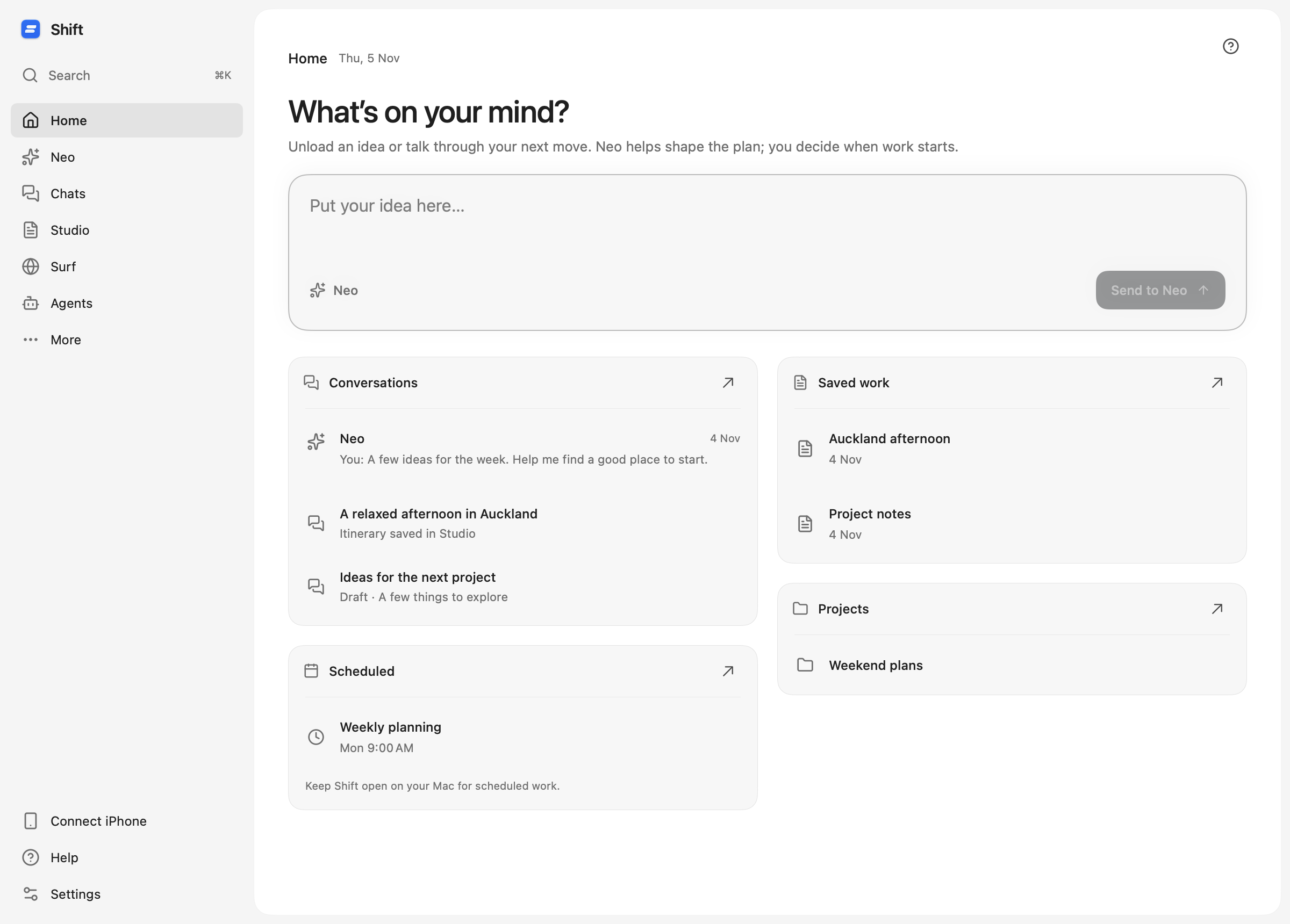
A new workspace should help you get something done in the first few minutes. You shouldn’t have to watch a video, learn a list of tools, or fill out a long setup before you can begin.
Public Beta 0.2 starts with the idea already on your mind. Write it on Home and send it to Neo when you’re ready. Your conversation, research and saved result belong to the same workspace. Choose a layout, add your preferences, and connect your phone as you go.
Your ideas and your work, together
Home is both a place to think and a place to pick up where you left off. Start a conversation at the top. Below it, find recent conversations, saved Studio work, projects and scheduled work, with active tasks and anything needing attention when relevant.
A new workspace offers helpful starting points, including an optional guided task. Your draft stays on this Mac until you send it to Neo. Neo helps clarify the idea and shape a plan; you decide when the work begins.
A whole workspace behind one conversation
You might arrive with a practical request, a rough question or several thoughts that do not quite fit together yet. Neo can ask what is missing, then propose a plan with the parts of Shift that can help.
Once you approve the plan, linked Chats, Surf and Studio steps pass their findings forward. Research can become a document you keep, rather than another answer to copy somewhere else. The plan shows the current step and links to the result; you can stop the work without losing anything already saved.
Learn by doing
The optional guided task gives you a useful starting request. Send it to Neo, review the proposed plan, and approve it when the scope looks right. The guide follows the real work through research in Surf and a saved page in Studio.
You can open the sources, edit the result, or stop the work from Neo. Highlights explain the next control in the workspace; you can dismiss them or return to the guide later.
Considered details. Your own personality.
The Shift Design Language gives the workspace a more consistent feel: quiet surfaces, readable typography, clear hierarchy and Lucide outline icons across the core controls. The details should make it easier to understand where you are and what you can do next.
There is still room for personality. Choose a native Neutral, Linen, Ocean or Forest theme, then set your appearance, accent, font and text size. Neo’s avatar and conversational tone are yours to adjust too.
Choose Sidebar, Tabs or Windows in Layout settings. Keep navigation at the side, move between work views with tabs, or keep the active work in one separate window alongside the launcher. Closing that window brings the same work back into the main workspace. Grouped, searchable settings keep these choices easy to find.
See the colors, components and principles on the Shift Design Language board.
Bring the context you already have
“Set up with my AI” helps you bring preferences, project context and rules into Shift. Ask your existing AI to prepare the setup response, then paste it or choose the file in Shift.
Review the suggestions, edit them, and choose what to save. This is optional, and it does not connect another service or grant app permissions for you.
A result you can keep working on
Studio is where research becomes your own working document. Edit headings, lists, checklists, code and tables as blocks, or open the Markdown source. Review AI revisions before applying them; a newer manual edit will not quietly be replaced by an older AI suggestion.
Keep the sources alongside the result, export a document in a useful format, and come back to edit it later. A file you move to Bin remains recoverable for 30 days. If writing fails after successful research, a safe Studio retry can reuse that completed research instead of starting the whole plan again.
Text your Mac from your iPhone
Send a task to Neo and keep the conversation close when you step away from your desk. The companion puts same-account setup first and makes connection and message delivery states easier to understand.
A delivery confirmation comes from the Mac’s actual conversation. If a message is rejected, recover your text and try again. If the outcome is uncertain, Shift asks you to review it before repeating work. Saved document previews refresh from the Mac as the work changes.
The conversation can sit beside a preview of your Mac, with explicit approval for screen control. Personal Unlock needs separate Mac setup and phone authentication. Your Mac must stay awake, online and running Shift; it cannot be unlocked before login after a restart. Physical-device reliability across different networks is still being evaluated. Follow the connection guide and test your setup before relying on it away from home.
Keep short tasks moving
Fast mode uses lower reasoning for short Neo plans and concise Studio documents while keeping your selected AI model. Short documents can be written in one generation step, while Surf keeps the source checks needed for the request. Supported public PDFs, such as menus and guides, can become part of that research.
Real completion times still depend on the provider, network, sources and work involved. Follow the progress, review the result and choose more reasoning when the task needs it.