App control Accessibility
Lets Shift click, type, and interact with controls in other apps.
System Settings → Privacy & Security → Accessibility → Shift
 SHIFT FOR MAC · PUBLIC BETA 0.2
Let’s get you from download to your first useful task.
Start setup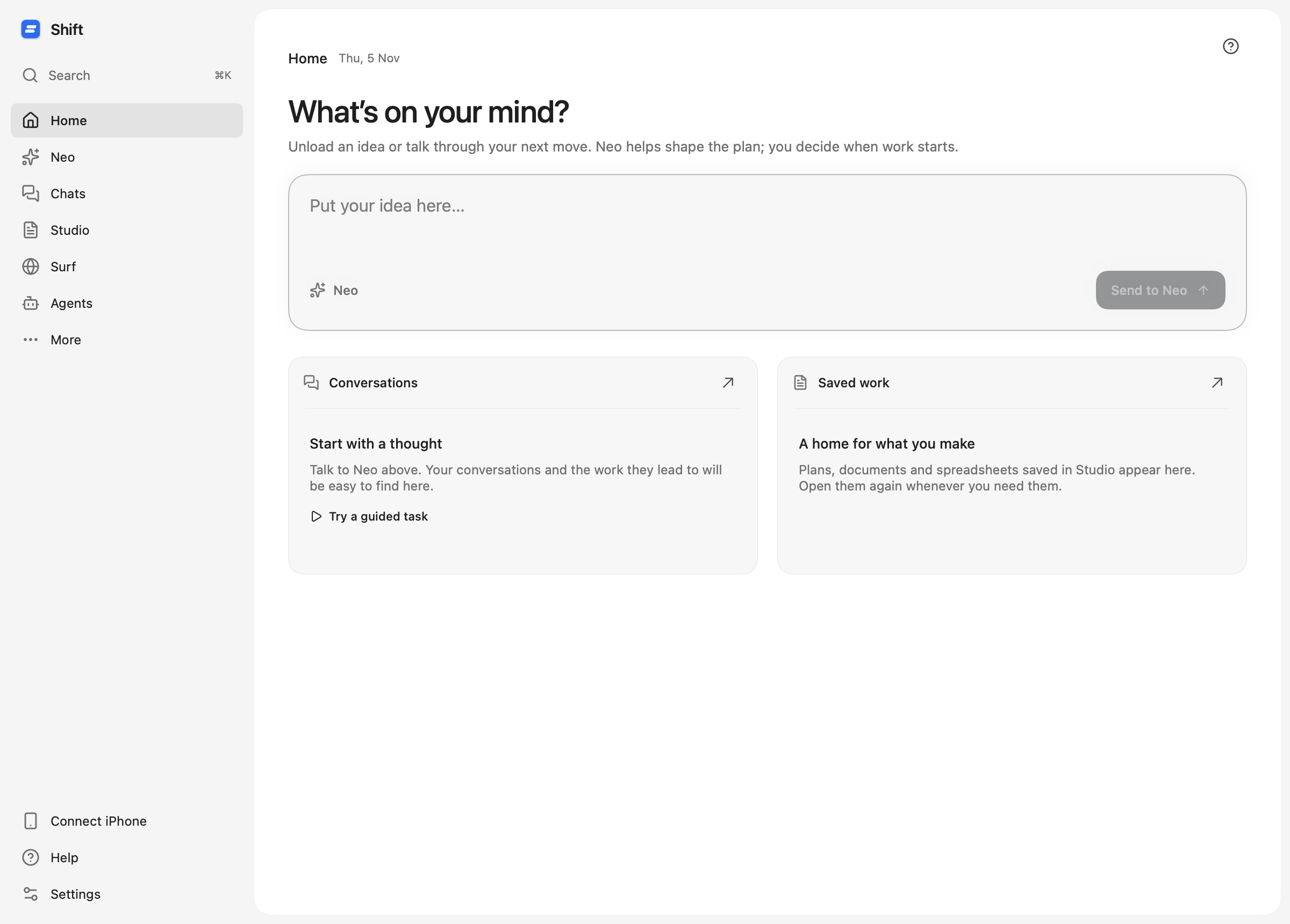
Download Shift, then work through the setup below.
Shift-1.0.0-beta.2.20261111.1-arm64.dmgChoose Get started in Shift, sign in or create your Shift account, and tell Shift what to call you. Next, choose an AI connection in Connect your AI.
Choose a supported provider and follow its connection steps. Use account sign-in where the provider supports it, or connect with an API key. A subscription does not automatically include API credit. A Shift account and your AI connection are separate.
If you already use Ollama, choose it during AI setup and select an installed model. Keep Ollama running while you use that connection.
Go straight to the workspace once your connection is ready. Personalization, layout choices and device setup are optional; you can return to them in Settings.
Shift’s setup explains each permission and has an Allow button. Chat and Studio can be used without these permissions; enable the access needed for desktop interaction or voice.
Return to Shift after enabling a permission. If macOS asks you to quit and reopen the app, do that before trying a desktop task. You can revoke access in System Settings at any time.
Write what’s on your mind directly on Home, then choose Send to Neo or press ⌘Return while editing your idea. The unsent draft stays on your Mac until you’re ready. For a walkthrough, choose Try a guided task, or open Neo and send the example below.
Read and edit the example, then send it when you are ready.
Find one free indoor activity in Auckland for a rainy afternoon. Check an official page for its location, opening hours and admission, then save a short Studio note with the source link and any uncertainty. Propose the plan for me to review first.
Check Neo’s proposed steps and approve the scope. Chats shows task progress, and Surf keeps the research pages and sources in view. If the plan needs changing, tell Neo before approving it.
When the task finishes, open the saved document from Neo. Check the sources, edit the page and keep it in Studio. Home helps you return to recent work next time.
You can open each part yourself. Use Neo to talk through a goal, Chats for individual tasks, Surf for the web and Studio for your pages. Replay the highlighted guide from Help whenever you need it.
Enable the access methods you prefer in Settings: hold Command, shake your cursor, say “Hey Shift,” or use the notch. You can always return to Home from the workspace navigation.
Use the Download again link at the top of this page. Check your browser’s Downloads list and any download approval prompt. This release requires an Apple silicon Mac running macOS 26.2 or later.
This guide covers Public Beta 0.2. On an earlier build, open Neo from the workspace navigation and paste the first-task example there. Choose Shift → Check for Updates to check for an available update.
The current installer is Developer ID signed and notarized by Apple. Older downloads do not receive this update automatically. Download Shift-1.0.0-beta.2.20261111.1-arm64.dmg above, quit Shift, and replace the older copy in Applications. Open that copy from Applications. macOS may still ask you to confirm opening an app downloaded from the internet; this is a normal first-launch prompt. If it still says Apple cannot verify Shift, keep macOS security enabled and contact us with the filename and warning. Apple’s first-launch instructions.
Check that Shift is enabled in both Accessibility and Screen & System Audio Recording. If you moved or replaced the app, review the entry for your installed copy and follow any macOS restart prompt.
This Mac release checks for signed updates and can download them in the background. Updates install when you quit Shift; your workspace files and settings stay on your Mac. Manage this in Settings → Data & About → Software updates, or choose Shift → Check for Updates. If you have an older beta without an updater, install this download once to enable future in-app updates.
Open Shift’s model or AI connection settings, reconnect the provider you chose, then use Test connection. Check the provider’s account access, available credits, or usage limits. For Ollama, make sure it is running and a model is installed. Do not include API keys or passwords in a feedback report.
Use the square Stop task control in the active chat, or press ⌘. while Shift is focused. This stops the selected task, not every background agent. Check its final state and review any changes it already made. Stopping does not undo completed actions.
Shift for iPhone and Apple Watch is now available through TestFlight. Join the TestFlight beta and sign in with the same Shift account as your Mac. Follow our companion setup guide to connect your devices.
Include your request, what you expected, what happened, and the version and build shown in Settings → Data & About.